Owner Unit Offer is a function that allows a specific room to be booked fixed price if the customer logs in using a code.
For example if you have owners of apartments that should be allowed to book thier own apartment for free.
This function is not activated by default, please contact nitesoft support if you want enable it.
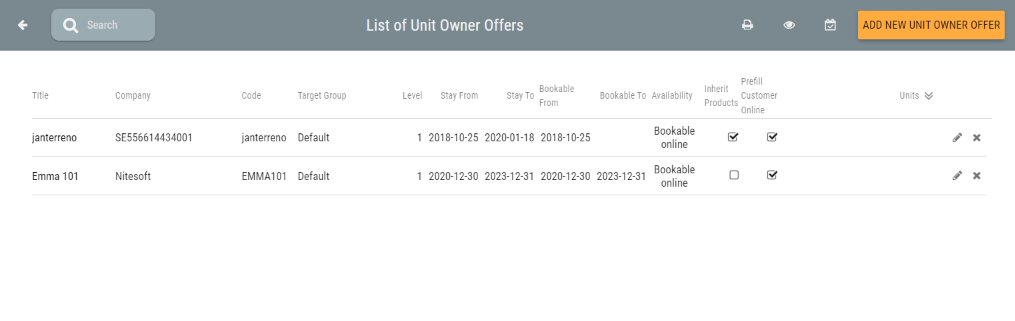
1. Go to 'Rates and Agreements'>'Unit owner offers'.
2. Here you will see a list of your offers, you can click pen icons to edit an existing offer. To create an offer click 'Add new unit offer' in top right corner.
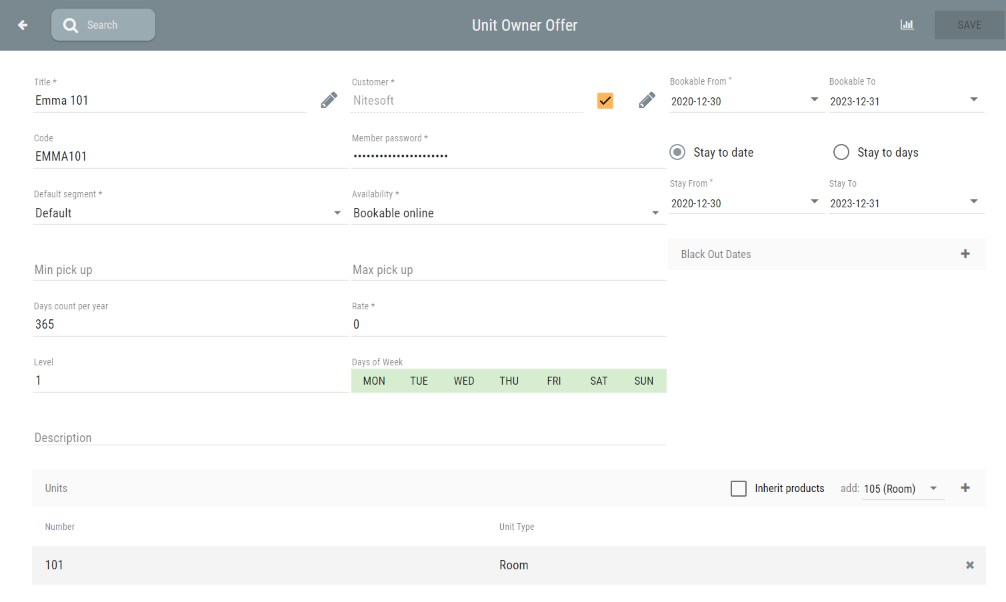
 3. Fill in the following fields:
Title: for example the owner name and room number (this title is normally what you will search for when you use the code from intranet)
Customer: see step 4 below
Bookable from/to: when this offer can be booked
Code: the code they will use when booking online, will be set automatically if you don't fill in the field
Member password: the guest is required to enter a password in order to use the code online
Stay to date/days: optional, By default you select start start and end date in "Stay from/to" if you select "Stay to dates" you will set a start date and how many days the code is valid for instead
Default segment: the Target group of reservations made by this code
Availability: if you want the code available for guests to use in the booking engine set "Bookable online". If you want to use it in intranet only set "Not Bookable online".
Stay from/to: for which days you can stay using this offer code
Min/Max pick up: optional, if the offer needs to be booked a certain number of days in advance.
Black out dates: optional, add if there are some days when you should not be able to use this offer
Stay from/to: for which days you can stay using this offer code
Days count (per year): How many days per year that can be booked using this code
Rate: Price per night (can be 0)
Level: Should be 1, unless you want the code to be able to be combined with other offers
Days of week: Select if the code should be bookable only on specific week days.
Description: optional, visible in intranet only
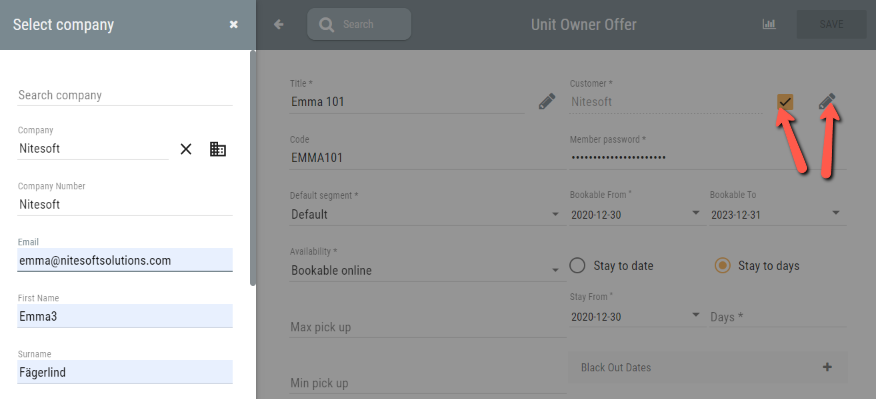
3. To enter Customer details click the pen icon, it will open a panel to the left.
Either search for existing company profile in "Company" field or fill in the contact information.
Click "Done" at the bottom of the left hand panel to add the customer information and continue.
To prefill the customer information when you use the code, check the checkbox to the left of the pen-icon.
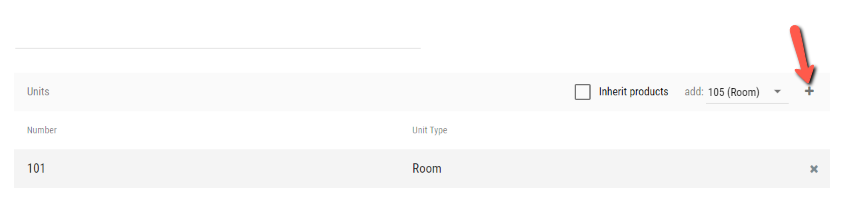
4. Select the Units that should be available for this code. First select it in the dropdown and then click "+" icon to add it to the code.
The checkbox "inherit products" means that any product included in the room rate will be included for the code also.
For example if the room rate include breakfast the code will also include breakfast.
5. Click "Save" in top right corner to save the owner unit offer.
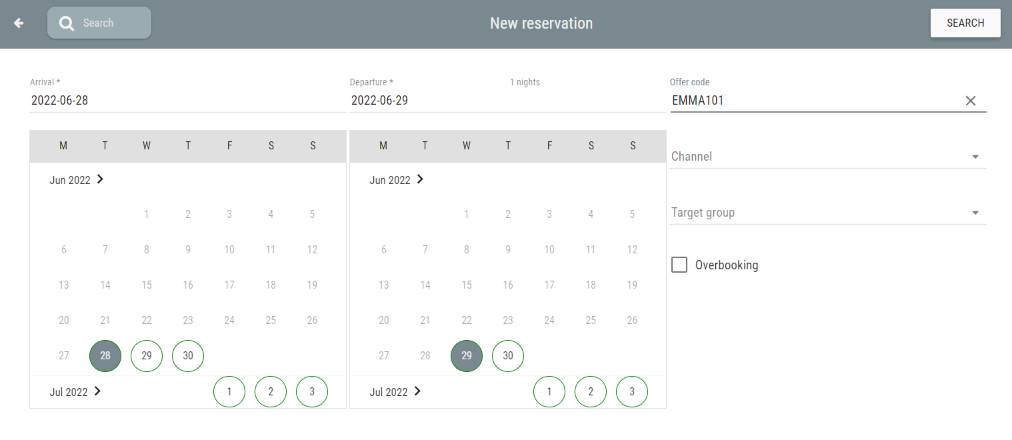
After it is saved you can search on the code or the title in the offercode field when creating a new reservation.
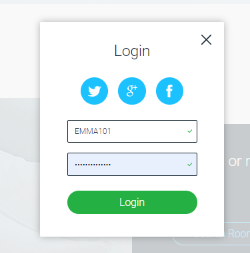
6. If the code is bookable online you can use the code in the web booking engine. Click log in and enter the code and password added set in the offer to be able to use the code.
Was this article helpful?
That’s Great!
Thank you for your feedback
Sorry! We couldn't be helpful
Thank you for your feedback
Feedback sent
We appreciate your effort and will try to fix the article